
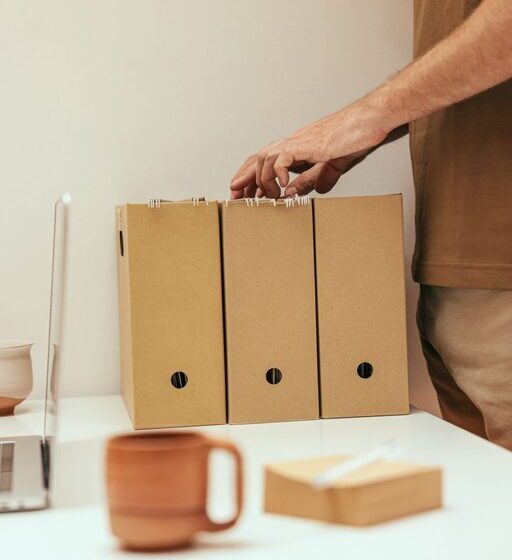

Keeping your computer files organized can save you time and reduce frustration when searching for important documents, photos, or projects. Whether you use your computer for work, school, or personal tasks, having a clear structure for your files helps keep everything accessible and easy to manage. In this post, we’ll share practical tips to help you get started with organizing your files and maintaining an efficient system.
Why Organizing Files Matters
A cluttered desktop or disorganized folders can slow you down and make it difficult to find what you need. When files are properly organized, you can:
– Quickly locate documents and media
– Avoid creating duplicate files
– Protect important information from accidental deletion
– Improve your overall workflow and productivity
With that in mind, let’s explore some helpful strategies.
Step 1: Plan Your Folder Structure
Before moving files around, consider how you want to organize your digital files. Having a logical folder structure is the foundation of good file organization.
Tips for an Effective Folder Structure
– Use broad categories first: Create main folders based on major areas like Work, Personal, Photos, or School.
– Be consistent: Use the same set of folders across different drives or computers if possible.
– Create subfolders: Inside main folders, add subfolders for projects, years, or specific topics to avoid clutter.
– Keep folder names clear: Use concise, descriptive names. Avoid vague labels like “Stuff” or “Miscellaneous.”
For example:
“`
Work
│
├── Reports
│ ├── 2023
│ └── 2024
├── Presentations
└── Meeting Notes
Personal
│
├── Photos
│ ├── 2022 Vacations
│ └── Family
└── Taxes
“`
Step 2: Name Files Clearly and Consistently
File naming is just as important as folder organization. Good file names help you identify the content without needing to open the file.
Best Practices for File Names
– Use descriptive names that include details such as content type, date, or version.
– Avoid spaces and special characters; use underscores (_) or hyphens (-) instead.
– Include dates in the format YYYY-MM-DD for easy sorting.
– Use version numbers if you have multiple drafts or edits (e.g., “Report_v2”).
Example:
Instead of “Document1.docx,” use “Marketing_Report_2024-04-15_v1.docx.”
Step 3: Regularly Clean Up and Archive
Organization is an ongoing process. Files you no longer need can clutter your system and distract you.
How to Manage Old Files
– Delete duplicates and unnecessary files: Use tools or manually review folders to remove duplicates and outdated documents.
– Archive rarely used files: Move old files to an external drive or cloud storage to free up space.
– Set a schedule: Plan a regular cleanup time, such as once a month or quarterly, to keep your files in order.
Step 4: Use Desktop and Download Folder Wisely
Many people save files directly to the desktop or Downloads folder, creating clutter.
Tips for Managing these Areas
– Avoid saving files long term on your desktop.
– Move downloaded files into the appropriate folders immediately after use.
– Create a temporary folder within Downloads for files you need to sort later.
– Use your desktop for shortcuts to frequently used files or folders, not the actual files themselves.
Step 5: Utilize Search and Tagging Features
Modern operating systems include powerful tools to help you quickly find files.
How to Take Advantage of These Tools
– Use the built-in search bar with keywords or dates.
– Add tags or labels to files if your OS supports it (e.g., macOS tags or Windows file properties).
– Organize files with metadata like author, project name, or topic to enhance searchability.
Step 6: Backup Your Files Regularly
Keeping files organized is important, but backing them up is just as crucial to avoid data loss.
Backup Tips
– Use external hard drives, USB drives, or cloud storage services.
– Set up automatic backups if available.
– Keep at least two backup copies in different locations.
– Backup files after major changes or additions.
Step 7: Use File Management Software
If you deal with many files, specialized software can help automate organization.
Examples of Useful Tools
– Duplicate file finders
– Folder management apps that automatically sort files based on rules
– Cloud storage services with organization features
While not necessary for everyone, these tools can be a huge time-saver.
Final Thoughts
Organizing files on your computer doesn’t have to be overwhelming. Start by planning your folder structure and naming files consistently, then set aside time regularly to clean up. Combine these habits with backups and search features to maintain an efficient digital workspace. A little effort upfront makes a big difference in everyday productivity and reduces the stress of losing important information.
Happy organizing!